Tutorial 5: Workflow Automation
The status field on your tasks is just a dropdown right now — any user can set it to any value at any time. Workflow automation turns that into a controlled state machine: tasks can only move between states through defined transitions. The existing status dropdown is hidden in DaaS Studio in favour of a dedicated workflow_state field managed by the DaaS workflow engine.
By the end you’ll have:
- A task workflow with four states: Todo, In Progress, In Review, Done
- Four transitions wired up: Start, Submit for Review, Approve, Request Changes
- A
WorkflowButtoncomponent in the task detail page that renders only the valid next transitions for the current state
Locking transitions down to specific roles, and firing actions on transition (notifications, promotions), are covered in the Going further appendix at the end.
Prerequisites
- Completed Tutorial 4: Role-Based Access.
- Manager and Member roles exist in your DaaS backend.
How workflows work in Buildpad — A workflow is a JSON state machine stored in your DaaS backend (daas_wf_definition.workflow_json). It defines states, the commands that transition between them, optional policies (UUIDs of daas_access rows) that gate each command, and optional actions (DaaS events such as xtr.item.promote) that fire on a successful transition.
Define the Workflow
Open Copilot Chat and type:
/create-workflowThe skill will ask about your existing status field. Because the tasks collection already has a custom status dropdown from Tutorial 2, /create-workflow will detect the conflict and ask how to handle it. Choose “Replace status with workflow_state” — workflow_state becomes the single source of truth for task lifecycle and the existing dropdown gets hidden in DaaS Studio. (DaaS doesn’t support deleting field metadata via the API, so the underlying status column is retained but hidden, and any consumers of status need to be migrated to workflow_state.)
When prompted, answer as follows:
| Question | Answer |
|---|---|
| Which collection(s)? | tasks only |
| What workflow states? | Todo → In Progress → In Review → Done |
Existing status field conflict? | Replace status with workflow_state |
| Content versioning? | No — workflow state machine only |
The skill creates the DaaS-side workflow definition and assignment via MCP, and adds the required workflow_instance and workflow_state fields to the tasks collection. A Supabase migration is also generated under supabase/migrations/ so the local database mirrors the new columns.
States:
TodoIn ProgressIn ReviewDone(terminal)
Commands (transitions):
| Command | From → To |
|---|---|
| Start | Todo → In Progress |
| Submit for Review | In Progress → In Review |
| Approve | In Review → Done |
| Request Changes | In Review → In Progress |
By default the skill leaves policies empty on every command, so any user with write access on tasks can trigger any visible transition. See the Going further appendix to lock specific transitions to specific roles.
The skill also runs the Buildpad CLI to install WorkflowButton and adds it to the task detail page automatically — steps 3 and 4 below show what it set up.
Verify the Workflow
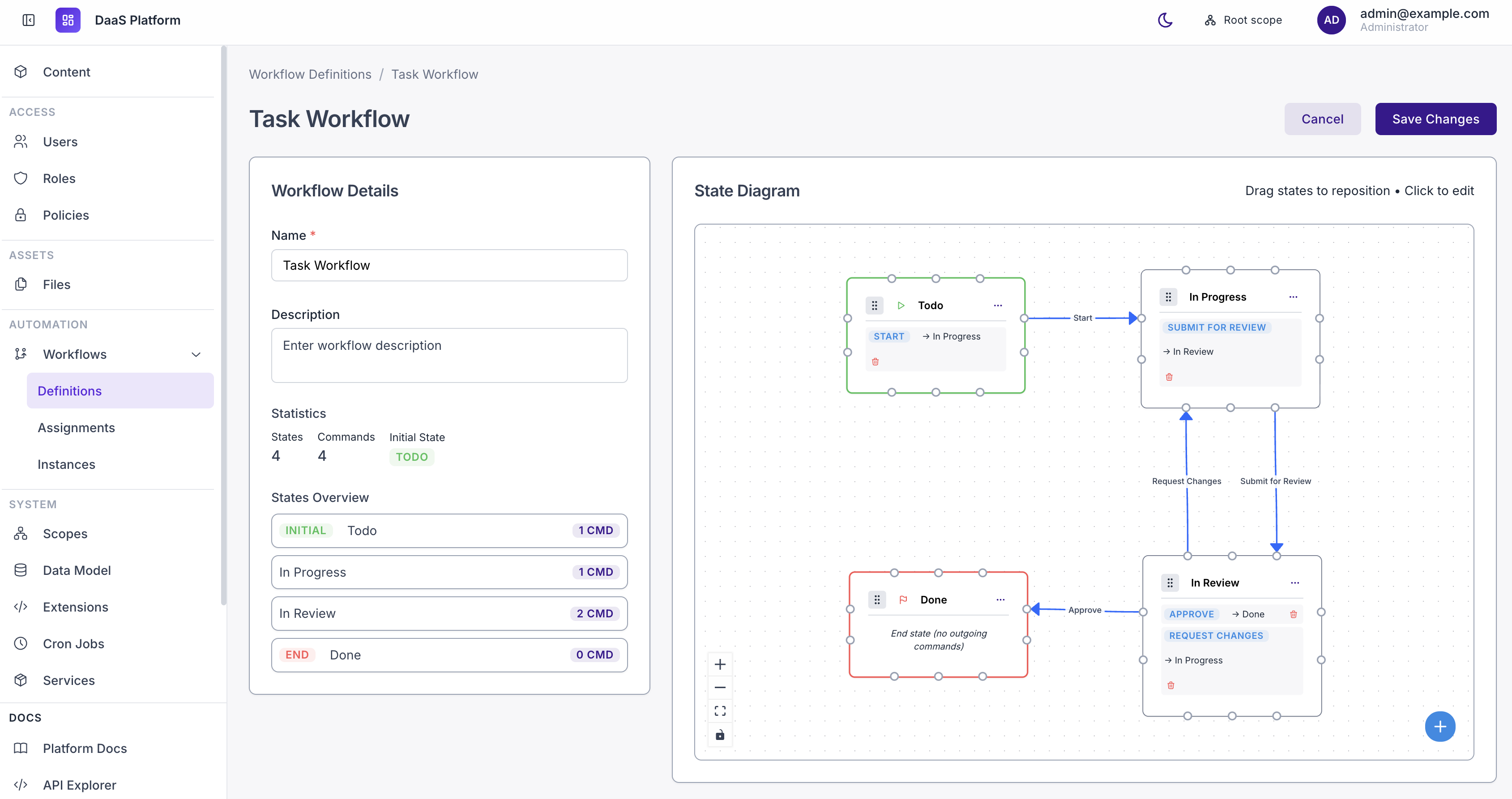
Verify the workflow was created in DaaS Studio:
- Workflows — a new “Task Workflow” definition with the four states above.
- Data Model → tasks — new
workflow_instanceandworkflow_statefields (both hidden on item forms; visible in the schema view). supabase/migrations/— a new migration file (e.g.…_add_workflow_to_tasks.sql) adding the two columns locally.
Always update workflow_state via the transition API. The WorkflowButton component does this for you — it calls the dedicated transition endpoint, which validates the move against the state machine, runs policy checks, and fires actions. Bypassing it with a direct PATCH on the field will silently skip those checks and leave the workflow instance out of sync, even if the database write itself succeeds.
The status column is hidden, not removed. It’s still in your database and still marked required=true in DaaS, so any code path that creates a task without supplying a status value (and without a default at the DB level) may fail. The list-page archive props in app/(authenticated)/content/tasks/page.tsx that reference status should be removed or pointed at workflow_state.
WorkflowButton Installed by the Skill
The skill ran the following command for you:
npx @buildpad/cli@latest add workflow-buttonThis installed components/ui/workflow-button/ into your project (importable as @/components/ui/workflow-button). No manual action required — this step is here for reference.
WorkflowButton Added to the Task Detail Page
The skill added the following to app/(authenticated)/content/tasks/[id]/page.tsx. Verify it matches what was generated in your project:
"use client";

import { use } from "react";
import { useRouter } from "next/navigation";
import { Group, Button } from "@mantine/core";
import { IconArrowLeft } from "@tabler/icons-react";
import { CollectionForm } from "@/components/ui";
import { WorkflowButton } from "@/components/ui/workflow-button";
import { isNewItem } from "@/lib/buildpad/utils";

export default function TaskDetailPage({
  params,
}: {
  params: Promise<{ id: string }>;
}) {
  const { id } = use(params);
  const router = useRouter();

  const handleSuccess = (data?: Record<string, unknown>) => {
    if (isNewItem(id) && data?.id) {
      router.push(`/content/tasks/${data.id}`);
    }
  };

  return (
    <div>
      <Group mb="md" justify="space-between">
        <Button
          variant="subtle"
          leftSection={<IconArrowLeft size={16} />}
          onClick={() => router.push("/content/tasks")}
        >
          Tasks
        </Button>
        {!isNewItem(id) && (
          <WorkflowButton collection="tasks" itemId={id} />
        )}
      </Group>

      <CollectionForm
        collection="tasks"
        id={isNewItem(id) ? undefined : id}
        mode={isNewItem(id) ? "create" : "edit"}
        onSuccess={handleSuccess}
      />
    </div>
  );
}
WorkflowButton automatically:
- Fetches the task’s current workflow state
- Renders only the commands available from that state, filtered by any
policiesattached to each command - Shows a confirmation dialog with an optional comment field
- Calls the DaaS transition API and updates the UI on success
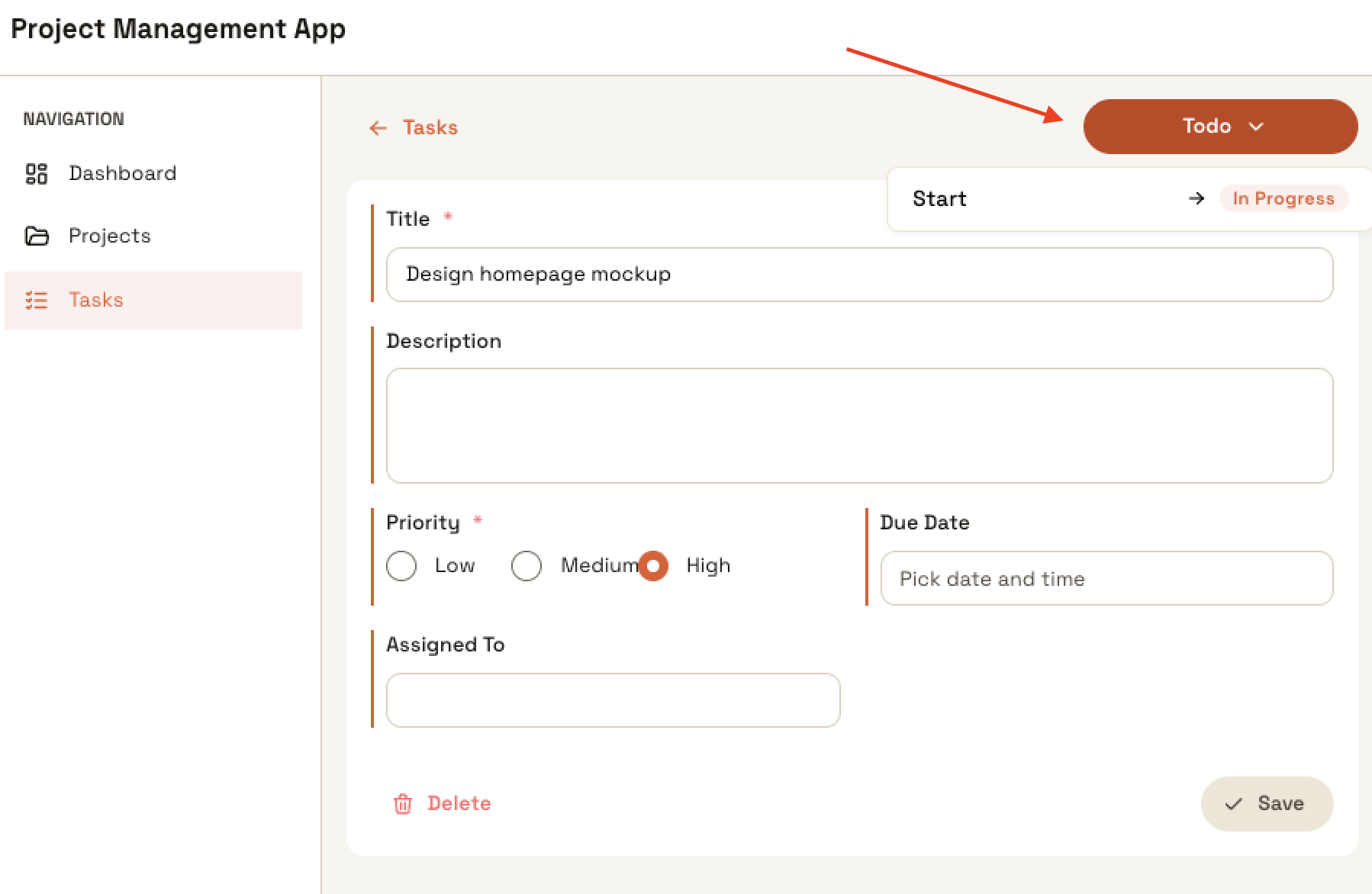
Walk a Task Through the Workflow
Open a task and click the workflow button to step through the lifecycle. The available actions change with each state:
- Todo → only Start is shown.
- In Progress → only Submit for Review.
- In Review → both Approve (moves to Done) and Request Changes (sends it back to In Progress).
- Done → no actions; this state is terminal.
Because this default workflow has empty policies on every command, every user with write access to tasks sees every transition. Locking a transition to a specific role is covered in the Going further appendix.
Workflow State Machine Reference
The workflow lives in daas_wf_definition.workflow_json. Commands (transitions) are nested inside each state, and actions are nested inside each command — there is no top-level transitions or actions array. The collection link lives on a separate daas_wf_assignment row, not in workflow_json.
{
  "initial_state": "Todo",
  "states": [
    {
      "name": "Todo",
      "isEndState": false,
      "commands": [
        {
          "name": "Start",
          "next_state": "In Progress",
          "policies": [],
          "actions": []
        }
      ]
    },
    {
      "name": "In Progress",
      "isEndState": false,
      "commands": [
        {
          "name": "Submit for Review",
          "next_state": "In Review",
          "policies": [],
          "actions": []
        }
      ]
    },
    {
      "name": "In Review",
      "isEndState": false,
      "commands": [
        {
          "name": "Approve",
          "next_state": "Done",
          "policies": [],
          "actions": []
        },
        {
          "name": "Request Changes",
          "next_state": "In Progress",
          "policies": [],
          "actions": []
        }
      ]
    },
    {
      "name": "Done",
      "isEndState": true,
      "commands": []
    }
  ]
}
Field notes:
initial_state— the state every new instance starts in. Must match astates[].name.states[].isEndState—truefor terminal states (no outgoing commands).commands[].next_state— destination state. Thefromis implicit (the parent state).commands[].policies— array of UUIDs referencing rows indaas_access. Empty means anyone with write access can run the command. Role names are not used here.commands[].actions— array of action objects withevent_nameand optionalparameters. The two built-in events that ship with DaaS arextr.item.promote(promotes a version delta to the main item — only relevant for versioned content) andxtr.event_test.write_log(debug logger). Any other event name must be registered as a custom action handler in DaaS, otherwise it silently no-ops. Actions fire on the transition, not on entering a state.
Going further
Both of these are optional follow-ups — the tutorial above already gives you a working state machine.
Lock down transitions with policies
To restrict a transition to a specific role:
-
In DaaS Studio, create a policy (under Access → Policies) — for example, “Approve Tasks” — and attach it to the role allowed to perform the transition (i.e Manager Role).
-
Edit the workflow definition (DaaS Studio → Workflows → Definitions → Task Workflow) and add the policy’s UUID to the relevant command’s
policiesarray. For example, to make Approve Manager-only:{ "name": "Approve", "next_state": "Done", "policies": ["<approve-tasks-policy-uuid>"], "actions": [] } -
Sign in as a Member — the Approve button should no longer appear on tasks in the In Review state. Sign in as a Manager — the button is back.
Transition button disappears for all users after adding a policy? This means policy resolution is broken: WorkflowButton is receiving an empty policy list for every user, so when a command has a non-empty policies array it treats the command as inaccessible to everyone — including Managers who should have access.
Open Copilot Chat and ask it to fix the policy resolution in app/api/auth/user/route.ts to use the Supabase service-role client (createSupabaseAdmin()) for the privileged lookup. Once the route returns the correct policies for the signed-in user, WorkflowButton will filter commands properly — Managers see the button, Members do not.
Trigger an action on transition
Actions are events that fire after a successful transition — useful for audit logging, sending notifications, updating related data, or any side effect you want tied to a state change. They’re attached to a command, not to a state, so they only run when that specific transition is taken.
Actions fire after a successful transition and are attached to a command, so they only run when that specific transition is taken. This walkthrough adds a last_transitioned_at timestamp to tasks — when Submit for Review runs, the field updates automatically. You verify by refreshing the task.
-
Add a timestamp field to
tasks. In DaaS Studio go to Data Model → tasks → New Field. Choose the Datetime interface, name itlast_transitioned_at, and mark it read-only in the Metadata tab. Save. -
Register a runtime extension. Go to Extensions → Add Extension and fill in:
Field Value Name Stamp transition timestampEvent xtr.task.stamp-transitionType actionPaste this into the Code field:
const wf = meta.payload?.[0]?.workflow_instance;
if (!wf?.item_id) return;

const tasks = await context.services.items('tasks');
await tasks.updateOne(wf.item_id, {
  last_transitioned_at: new Date().toISOString(),
});
Then click Create → Activate
Runtime extensions are hot-loaded — no server restart needed.
-
Attach the action to Submit for Review. Go to Workflows → Task Workflow and click the Submit for Review transition arrow. In the modal, switch to the Actions tab and click Add Action:
Field Value Action Name Stamp transitionEvent Name xtr.task.stamp-transitionParameters (JSON) leave empty Save the modal, then save the workflow definition.
-
Trigger and verify. Open a task in In Progress and click Submit for Review. Refresh the task —
last_transitioned_atis now populated.If the field is still empty: confirm the extension is Active, that the Event Name on the command exactly matches the extension’s Event (
xtr.task.stamp-transition), and that the transition succeeded.
Action silently no-ops? The workflow engine accepts any event_name in actions, but if no handler is registered for it the action does nothing — no error, no warning. Any custom event name needs a handler registered via a runtime extension (hot-reloaded) or a file-based extension (extensions/<name>/index.mjs, requires restart).
What’s Next
Your tasks now have a controlled lifecycle. In the next tutorial you’ll link tasks to projects (Many-to-One) and add tags (Many-to-Many) with deep filtering support.