AI Assistant
Buildpad gives you AI help in two places:
- Ask Buildpad, in the platform header, answers your questions about Buildpad from the docs.
- The agent of your AI IDE (GitHub Copilot, Kiro, Google Antigravity or Claude Code) builds your app. A Buildpad starter kit connects it to your project. See AI IDE Setup.
Ask Buildpad
Open It
Click Ask AI in the header, or press ⌘ I on macOS or Ctrl I elsewhere. You can also click Ask Buildpad AI at the top of the help menu (?). The panel opens on the right. On a wide screen, the page moves aside to make room. Press the same keys, click Close or press Esc to close it.
When the panel is empty, it shows four suggested questions. The first ones are about the screen you have open. Click one to ask it, or type your own question in Ask a question… and press Enter. Press Shift Enter for a new line. While an answer comes in, click Stop to stop it.
What It Knows
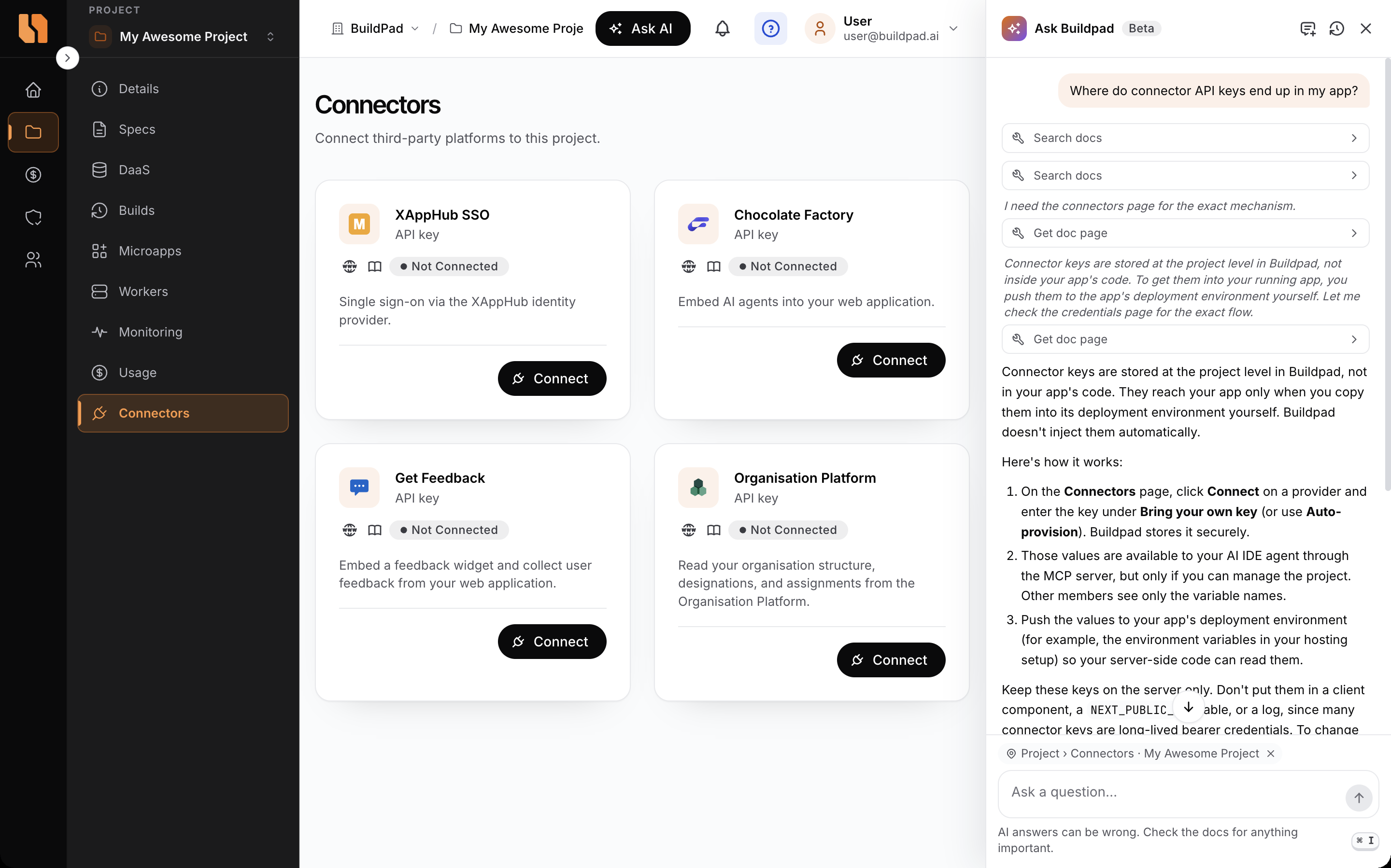
Ask Buildpad answers from the Buildpad docs: these Platform docs, the DaaS docs and the UI docs . It searches the docs for each question; while it works, the panel shows one word, for example Triangulating…, until the answer appears. An answer ends with links to the docs pages it used; links open in a new tab, so the panel and your page stay where they are. An answer can also show a screenshot from the docs. Click a screenshot to see it larger.
It answers in the language that you ask in.
It knows which screen you are on. A chip above the question box shows the screen and the open organization, project, app or worker, for example Project › Connectors · Shop. To stop sharing the screen, click the × on the chip. To share it again, click Share current page. Your choice is saved.
Ask Buildpad only answers questions. It sees only what you send: your questions, the screen in the chip and the images that you attach. It cannot see or change your projects, data, logs, builds or settings, and it cannot act for you.
AI answers can be wrong. Check the docs for anything important.
Attach Images and Screenshots
To show Ask Buildpad what you see, for example an error message or a failed build, attach an image:
- Click Attach images (the paper clip) to add PNG, JPEG, WebP or GIF images from your computer. You can also paste an image into the question box, or drag images onto the panel.
- Click Take a screenshot, then drag over the part of the page that you want to show. The panel hides while you select. Press Esc to cancel. On a page with embedded content, the browser can ask which tab to share. Select the tab that you have open.
After you select, the screenshot opens so you can mark it up. Draw with the pen, a line, a rectangle or an arrow, or add text, in one of five colors. To move a mark, use the select tool. Click Undo or Clear to remove marks. Click Done to attach the screenshot, or Cancel to discard it.
The images show above the question box. To mark up an image that is attached, click its pencil (Annotate). To remove an image, click its ×. Type your question and press Enter, or send the images without a question. Then Ask Buildpad tells you what it sees and what to do.
A question can have up to 4 images. The panel makes large images smaller before it sends them.
Images are sent to the assistant and kept with the chat. Do not attach images that show passwords, keys or other secrets. After 7 days, a past chat shows Image no longer available in place of its images.
Your Chats
- Click New chat to start a new conversation.
- Click Recent chats to open one of your last 8 conversations. The list is kept in this browser, so it does not follow you to another device.
- To remove a chat from the list, put the pointer on it and click Remove from list. Removing hides the chat from the list. It stays in the assistant’s logs, which the Buildpad team can review.
- Click Copy answer to copy an answer, or Copy code to copy a code block.
A question can have up to 8,000 characters. You can ask up to 30 questions in 10 minutes.
Messages
If Ask Buildpad cannot answer, the panel shows No answer this time with the reason and a Try again button.
| Message | What to do |
|---|---|
| You’ve sent a lot of questions in a short time. Try again in N minutes. | Wait, then ask again. |
| The assistant couldn’t be reached. Try again in a moment. | Click Try again. |
| The assistant is switched off right now. | Try again later, or contact Buildpad support. |
| That conversation is no longer available. | Start a new chat. |
Build With Your AI IDE
To build with AI, use the agent of your AI IDE with a Buildpad starter kit:
- Open the project’s Details page, or a microapp’s Detail tab.
- In AI IDE Setup, find the card of your AI IDE and click Download Starter. The download is available when Source Control is ready and the project environment is running.
- Extract the ZIP file and open the folder in that AI IDE.
- Chat with the agent of the AI IDE there.
The chat, its history and the display of tool calls are features of your AI IDE. For these features, read the documentation of your AI IDE.
The starter gives the agent:
- Agent instructions and agent skills for your project.
- An MCP configuration for your AI IDE, with your project’s tokens in it.
- In a full download, an
.env.localfile with your project’s settings.
Turn on Add to an existing project (agent files only) to download only the agent instructions, the skills and the MCP configuration. See The Starter Kit.
Platform Tools
The starter adds the buildpad-platform MCP server to the agent. It lets the agent read and change some parts of your project on the platform.
The server uses a personal token, so the agent acts as you: each tool works only if you may do its action on the project at that moment. The Needs column shows what you need:
| Tool | What it does | Needs |
|---|---|---|
| Get Project Detail | Gets the organization, the project, its microapps with their Amplify addresses, and its workers. Without the right to use the project’s credentials, it leaves out every token, password and key. | Open the project |
| Get Amplify Environment Variable Keys | Gets the names of the environment variables of an Amplify app. It does not get the values. | Use the project’s credentials |
| Set Amplify Environment Variables | Adds, changes or removes environment variables of an Amplify app. | Edit the project |
| Redeploy Amplify App | Starts a new build and deploy of the main branch of an Amplify app. | Edit the project |
| Get Amplify Build Status | Gets the status of an Amplify build and deploy job. | Open the project |
| Get Amplify Build Log | Gets the build log of an Amplify job. | Open the project |
| Get Amplify Access Log | Gets the recent HTTP access log of an Amplify app. | Open the project |
| Get Amplify Compute Log | Gets the server-side runtime log of a deployed Amplify app. | Open the project |
| Get Worker Status | Gets the runtime status of a worker. | Open the project |
| Get Worker Environment | Gets the environment variables of a worker, with their values. | Use the project’s credentials |
| Get Worker Logs | Gets the application logs of a worker. | Open the project |
| Get Worker Builds | Gets the build history of a worker, or the logs of one build. | Open the project |
| Get Worker Recommended Environment | Gets the recommended environment variables for a worker. | Use the project’s credentials |
| Set Worker Environment | Replaces the environment file of a worker and restarts the worker. | create_workers |
| Restart Worker | Restarts a worker. | create_workers |
- Open the project: you are a member of the organization and can open the project. See Sharing and Access.
- Use the project’s credentials: see Who Can See the Credentials.
- Edit the project: your role has Update Projects, or you created the project and your role still has Create Projects.
create_workers: see Workers: Permissions & Quotas.
Without the access, the tool does not run and the agent gets This MCP token acts for you, and you may not …, with what you may not do. Ask an organization admin or the project’s creator for access.
The Amplify tools work on the Amplify app of the project’s main app, or on the Amplify app of a microapp.
The starter also connects the agent to your project’s data service, through the daas MCP server. For the three MCP servers in the starter, see Connect to Backend Services. To let the agent read the Buildpad docs too, see Docs for AI Agents.
Project and Microapp Context
The agent gets your project context from the starter, not from the page that you have open on the platform.
- Get Project Detail gives the agent the organization, the project and all the microapps of the project. The MCP token in the starter sets the project.
- A starter from a microapp’s Detail tab uses the name and the Source Control repository of that microapp. For a web microapp, its agent instructions are for a microapp. For a mobile microapp, it is an Expo starter for that app.
- A starter from the project’s Details page uses the project’s main Source Control repository. Its agent instructions are for the project’s main app.
To work on a different microapp, download the starter from the Detail tab of that microapp.