Specs
The Specs page of a project shows the specs in the project’s repository: the requirements.md, design.md and tasks.md files that your AI IDE writes under .kiro/specs/. You can read them, see how far the build has gone, see what changed and when, and leave comments for the team. You do not need an IDE or access to the repository.
Open a project and click Specs in the project sidebar, under Details.
To write specs, see Specs-Driven Development.
Who Can See It
Every member of the organization who can open the project can read its specs and comment on them. For a restricted project, only the people who can open the project see its specs.
Where the Specs Come From
The platform reads the .kiro/specs/ folder on the default branch of the project’s main repository. Each folder in it is one spec, and each Markdown file in a folder is one document of the spec. The documents show in this order: requirements.md, bugfix.md, design.md, tasks.md, then the other Markdown files in name order. A file named research.md shows as Research.
The title of a spec is the first heading of its requirements.md or bugfix.md. If there is no heading, the title comes from the folder name.
To show a new spec or a change, commit it and push it to the default branch. The platform reads the repository again after one minute at most. To read it at once, click Refresh. The header shows the commit that the page shows and when it was read, for example Commit 1a2b3c4 · synced 2 minutes ago.
The spec text stays in your repository. The platform keeps only the comments.
The Specs List
The list has one entry for each spec. Each entry shows:
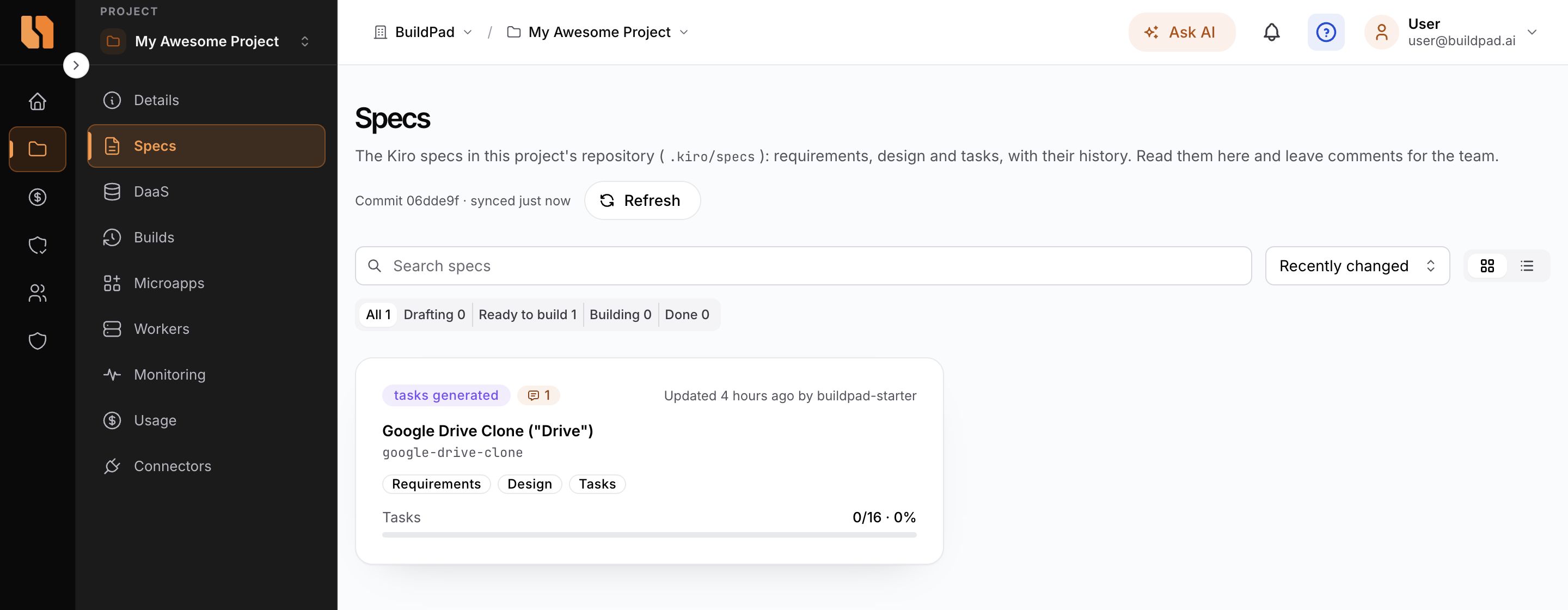
- The status of the spec, for example tasks generated or in progress
- The number of open comments
- When the spec last changed, and who changed it
- A badge for each document
- Whether the requirements, design and tasks are approved, from the spec’s
spec.jsonfile if it has one - The progress of the tasks, for example Tasks 8/12 · 67%, or No tasks yet
The progress counts the checkbox lines in tasks.md: - [ ] is a task to do and - [x] is a task done.
Use these controls to find a spec:
| Control | What it does |
|---|---|
| Search specs | Shows the specs whose title or folder name matches. |
| Status filter | All, Drafting, Ready to build, Building or Done, each with its count. |
| Sort | Recently changed (the default), Name or Progress. |
| Cards or table | Shows the specs as cards or as rows of a table. With more than 12 specs, the table is the default. |
The page remembers your sort, view and filter in this browser.
| Status | Meaning |
|---|---|
| Drafting | The spec has no tasks yet. |
| Ready to build | tasks.md has tasks, but none is done. |
| Building | Some tasks are done. |
| Done | All tasks are done. |
Reading a Spec
Click a spec to open it. The tabs at the top are the documents of the spec. A yellow count on a tab shows its open comments.
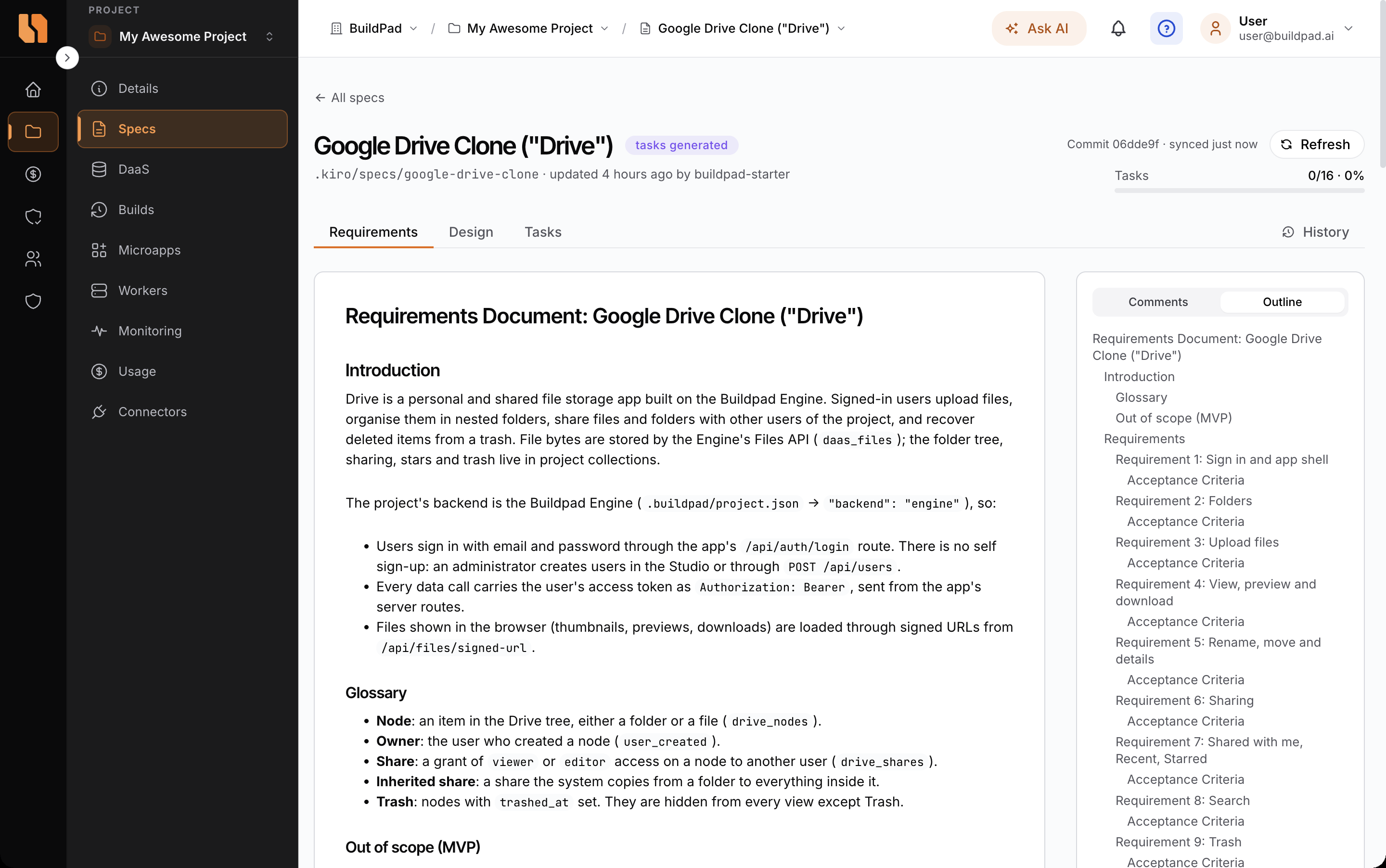
The documents show as formatted Markdown:
- Tables have an expand button that shows the table full screen.
- Code blocks have a Copy button.
- Mermaid diagrams are drawn as diagrams. Click a diagram to open it full screen, where you can zoom and move it.
- Task lists show as checkboxes. You cannot tick them here. Tick them in
tasks.md. - A link to another spec or document opens it in the platform.
The panel on the right has two views. Outline lists the headings of the document and shows where you are. Comments shows the comments on the document. See Comments.
To switch to another spec, click the spec name in the header and select a spec from Switch Spec. The platform opens the same document in the other spec if it has one.
The address of the page includes the document, the comment and the version that you have open. Copy the address to send someone to the same place.
History
The History tab shows each commit that changed the spec, newest first. Each commit shows its message, its author, and the documents that it changed. These buttons are on each commit:
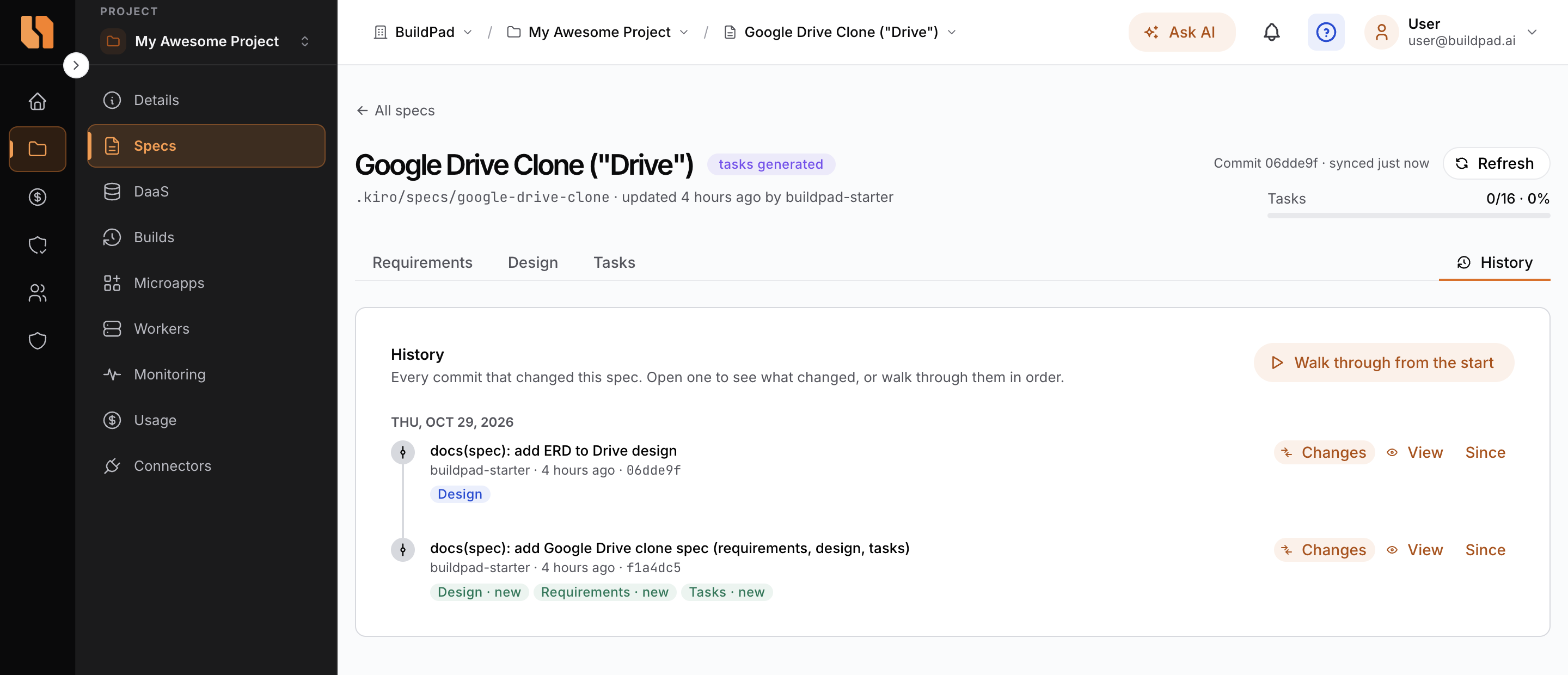
| Button | What it does |
|---|---|
| Changes | Shows what the commit changed. |
| View | Shows the spec as it was after this commit. |
| Since | Shows everything that changed from this commit to the latest version. |
Click Walk through from the start to step through the commits from the first one, with Older and Newer.
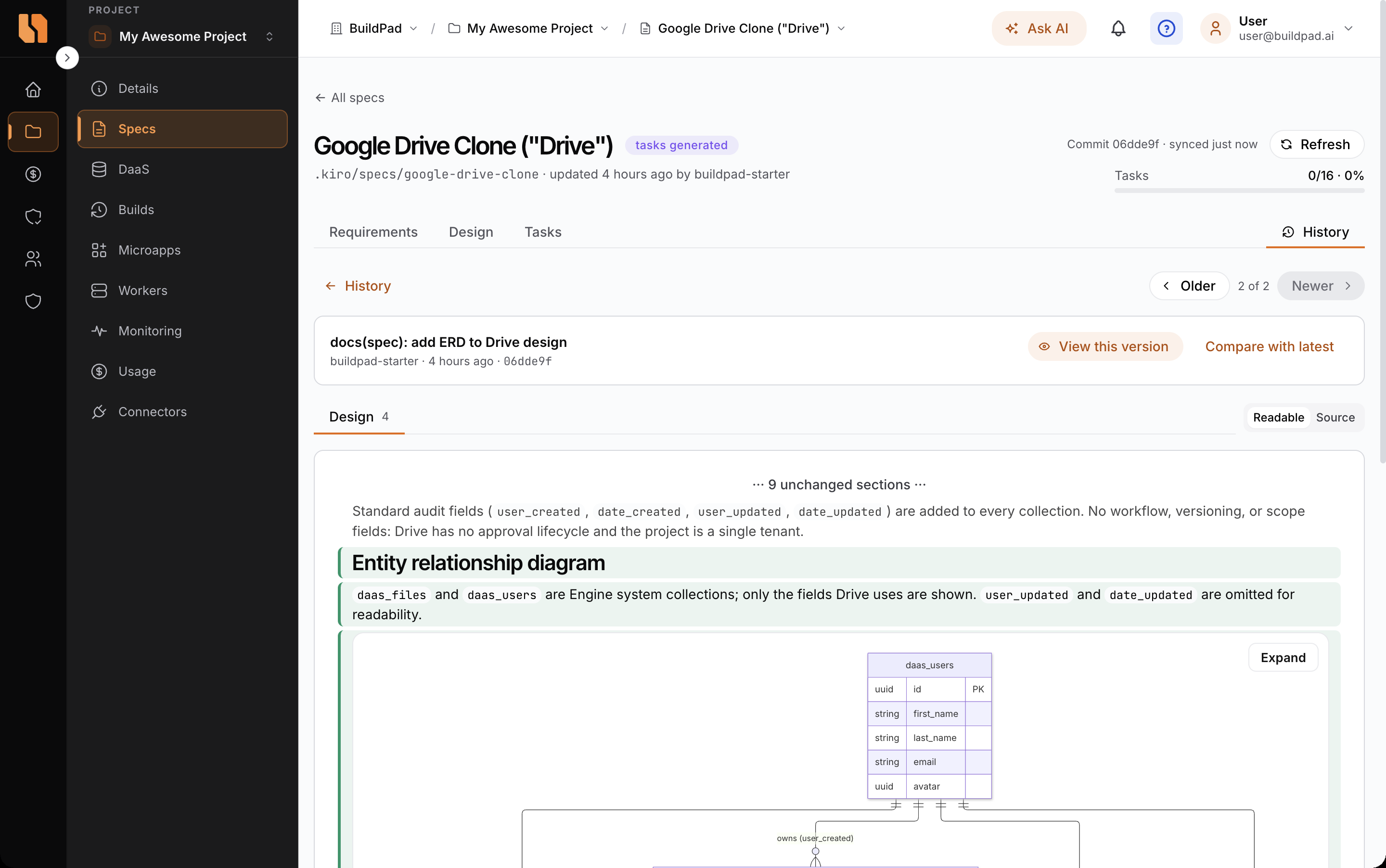
When you look at changes, select Readable to see the formatted documents with added text in green and removed text struck through, or Source to see the changed lines. For tasks.md, a box lists the tasks that the change completed, reopened, added or removed.
To compare any two versions, select them in From and To.
When you view an earlier version, a blue banner shows which version it is. Click Back to latest to return. You cannot add comments to an earlier version.
Comments
You can comment on three parts of a document:
- The whole document: type in the box at the bottom of the Comments panel.
- A section: put the pointer on a heading and click its comment icon. The panel then shows only the comments on that section.
- A passage: select up to 1,000 characters of text, then click Comment. Passages that have open comments are highlighted in yellow. Click a highlight to see its comments.
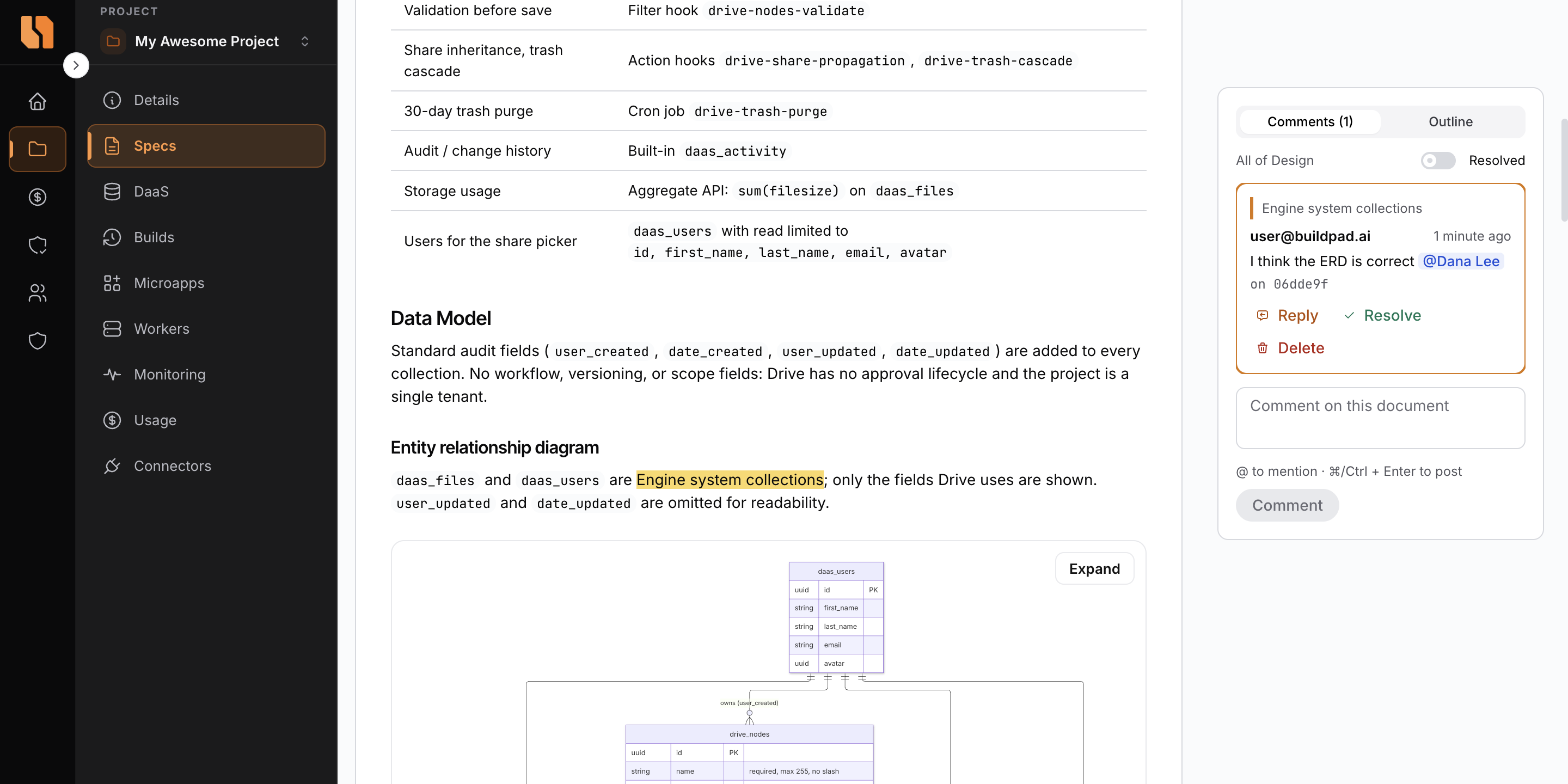
Press ⌘ Enter on macOS or Ctrl Enter elsewhere to post. A comment can have up to 4,000 characters.
- Reply to a comment to start a thread.
- Resolve a thread when it is done. Any member who can open the project can resolve a thread or Reopen it. To see resolved threads, turn on Resolved.
- Delete your own comment. If it starts a thread, its replies are deleted too. You cannot edit a comment.
The spec can change after a comment is written. A section comment then shows Outdated, and a passage comment shows Passage changed when the passage is no longer in the spec. Click the commit link on a comment to read the spec as it was when the comment was written.
Mentions
Type @ in a comment to mention a person. The list shows the people who can open the project. You can mention up to 10 people in one comment.
Each person that you mention gets an email with the comment and an Open the comment button that opens the thread, and a notification in the platform. You do not get an email or a notification when you mention yourself. Mentions of you are highlighted in yellow.
Notifications
The bell in the header shows your notifications about spec comments:
| You get a notification when | Example |
|---|---|
| Someone mentions you | Dana Lee mentioned you on Google Drive Clone |
| Someone replies in a thread that you wrote in | Dana Lee replied on Google Drive Clone |
| Someone resolves or reopens your comment | Dana Lee resolved your comment on Google Drive Clone |
You do not get a notification for what you do yourself, or for a project that you can no longer open. Only a mention also sends an email.
A count on the bell shows your unread notifications, and each unread one has a blue dot. Click a notification to open its comment; this marks it as read. Click Mark all read to mark them all. The bell checks for new notifications every 30 seconds, and when you come back to the browser tab.
To get a notification from your computer while the platform is open in another tab, turn on Desktop notifications while Buildpad is open at the bottom of the list. Your browser asks for permission the first time. Click Send test to check that it works.
See also The Header.
Messages
| Message | Cause | What to do |
|---|---|---|
| No specs in this repository yet | The default branch has no spec folders in .kiro/specs/. | Commit and push a spec to the default branch, then click Refresh. |
| This project has no Git repository yet | The project has no main repository yet. | Wait until the project is created, then click Refresh. |
| Could not load specs | The platform could not read the repository. | Click Refresh. If the message continues, contact Buildpad support. |
Related
- Specs-Driven Development: how to write specs in your AI IDE
- Projects