Security
Find the apps in your organization that ship a vulnerable framework version, and patch them.
What the Security Page Does
The Security page lists every app in the organization: each project’s main app and each microapp that has a repository. For each app, it shows which versions of these packages the app ships:
next(Next.js)sharp- the React server-component packages
react-server-dom-webpack,react-server-dom-turbopackandreact-server-dom-parcel
It then checks those versions against published security advisories, and shows the upgrade that fixes each problem.
To open it, open your organization and click Security in the sidebar.
Where the Data Comes From
- Versions come from the app’s repository, on the
mainbranch. Buildpad reads the lockfile at the root of the repository:pnpm-lock.yaml,package-lock.jsonoryarn.lock. If the repository has no lockfile, Buildpad readspackage.jsonand uses the lowest version that each range allows. The app then shows (from package.json, no lockfile), because the installed version can be higher. - Advisories come from GitHub’s public advisory database, and from the advisories that the Next.js project publishes itself. The second source shows a new Next.js advisory on the day it is disclosed.
Buildpad does not run your app or look at its live site. It only reads the files in the repository.
When Apps Are Scanned
- Every hour, Buildpad refreshes the advisories and rescans each app whose
mainbranch changed. Every app is rescanned at least once a day. - A new advisory applies at once. The page matches it against the versions it already has, so you do not have to wait for a rescan.
- Scan now rescans every app in the organization right away, also apps that did not change. Use it to confirm a fix you just pushed. You can run it once a minute.
The line under the page title shows how many advisories Buildpad knows and when they were last synced.
If a scan is postponed because the platform is busy, the result says postponed and the app is tried again within the hour.
Reading the Page
The Summary
Four numbers sit at the top:
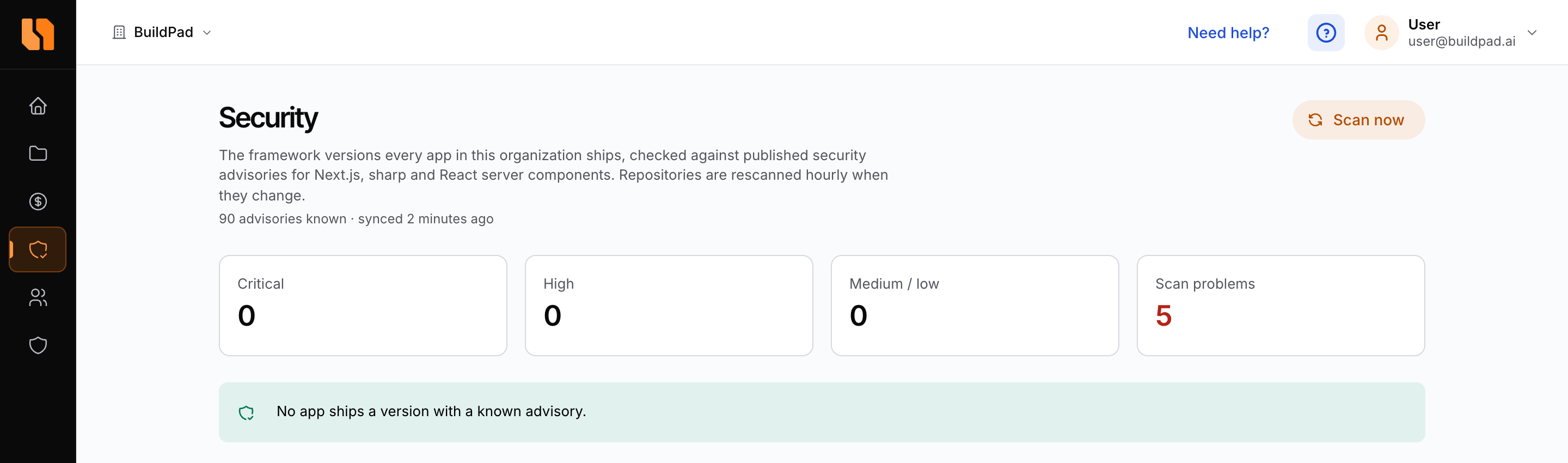
| Number | What it counts |
|---|---|
| Critical | Apps whose most severe advisory is critical |
| High | Apps whose most severe advisory is high |
| Medium / low | Apps whose most severe advisory is medium or low |
| Scan problems | Apps whose last scan failed |
Affected Apps
Each affected app has its own card, most severe first. The card shows:
- The project name (a link to the project), the app name (Main app or the microapp’s name), the repository and the versions found.
- A badge with the app’s most severe level: Critical, High, Medium or Low.
- An Upgrade box with the version to move to, for example
next15.5.7 → 15.5.28. One upgrade per package clears every advisory that has a fix. - A table of advisories, with these columns:
| Column | Shows |
|---|---|
| Severity | The advisory’s level |
| Advisory | A short description, and the advisory ID (for example GHSA-xxxx-xxxx-xxxx) with its CVE ID when there is one. The ID links to the advisory. |
| Installed | The package and the version the app ships |
| Fixed in | The first version that fixes it, or No fix yet |
Other Apps
Apps without a known advisory are listed in the Other apps table, with their versions and a status:
| Status | Meaning |
|---|---|
| No known advisories | The app was scanned, and no advisory applies to its versions. |
| Not scanned yet | Buildpad has not read the repository yet. |
| Scan failed | Buildpad could not read the repository. The reason is shown under the versions. |
A failed scan shows one of these reasons, for example:
- The repository has no main branch yet. Push the app to
main. - No lockfile or package.json at the repository root. Buildpad only reads the root of the repository.
- The repository does not exist.
If a rescan fails after an earlier good scan, the card keeps the last versions read and says Last rescan failed, showing the last versions read.
One Project Only
A link from the organization Home page opens the Security page for one project. The page then shows Showing project only. Click Show all projects to see the whole organization.
Who Can See and Act
| Action | Who can do it |
|---|---|
| See the Security page | Every member of the organization. Restricted projects that you were not added to are left out. |
| Scan now | Organization Admins |
| Patch, Patch all affected, Revert | The project’s Admins, for that project’s apps. See Roles and Access. |
The buttons do not appear if you do not have the role for them.
Security Issues on the Home Page
The organization’s Home page lists security issues first in the Needs attention list. A project appears there when one of its apps has a critical or high advisory. Its badge reads Critical vulnerability or High vulnerability, with the number of apps when more than one is affected, for example Critical vulnerability · 2 apps.
Click the project name to open the Security page for that project.
Medium and low advisories do not appear on the Home page. You see them on the Security page only.
Security Emails
Buildpad emails the people who can act when an app gets a critical advisory.
- Who gets them: the project’s Admins. These are the organization Admins and the people with the Admin role on the project.
- How often: each app and advisory is emailed once. You get one email per organization at a time, which lists all the new findings for the projects you can act on.
- What it contains: the advisories, each affected app with the upgrade that fixes it, the steps to take, and a link to the Security page.
High, medium and low advisories are not emailed.
The Idle project emails switch in Account settings does not turn off security emails. Security emails cannot be turned off there. See Idle Projects.
Fixing an App by Hand
You can always fix an app yourself:
- In the app’s repository, upgrade the package to the version in the Upgrade box, or later.
- Commit the updated
package.jsonand lockfile. - Push to the
mainbranch. Amplify rebuilds and redeploys the app. - Open the Security page and click Scan now, or wait for the hourly scan.
The app moves to Other apps and shows No known advisories when the fix is found.
Patching From the Security Page
Buildpad can make the upgrade for you. It changes the app’s repository and pushes the change to main. Amplify then builds and deploys the app.
Before You Patch
- Tell the people who work on the app. The patch is a new commit on
main. - After the patch, pull
maininto your local checkout before you continue to work. Otherwise your next push is rejected or creates a merge. - Look for a commit by BuildPad Security. Its message starts with
chore(security): upgrade next to …orchore(security): require sharp …, and it names the advisories it fixes. - Make sure the app builds on
maintoday. A patch cannot fix a build that already fails.
What a Patch Changes
nextmoves to the fixed version on the major line the app is already on, for example 15.5.7 → 15.5.28. Buildpad keeps the^,~or exact style of the version inpackage.json.sharpgets an override inpackage.jsonthat requires the fixed version, when the newnextdoes not already bring it.- The lockfile is updated to match, and Buildpad checks that it installs cleanly, as Amplify will install it.
Only package.json and the lockfile change. Buildpad does not run any of your app’s code while it patches.
Patch One App
- Find the app’s card.
- Click Patch.
Patch appears only on apps that Buildpad can patch. Otherwise the card says Not patched automatically and gives the reason. See When an App Needs a Manual Upgrade.
Patch All Affected Apps
- Click Patch all affected. The number in brackets is how many apps Buildpad can patch.
- Read the dialog Patch all affected apps?.
- Click Patch N apps.
Patch all affected covers the whole organization, also when the page shows one project only. Apps that need a manual upgrade are marked as manual, and apps that already have a patch in progress are skipped. A message tells you how many apps were queued, how many need a manual upgrade, and how many were skipped.
Patch Status
The app’s card shows the status of its latest patch. The page updates on its own while a patch runs.
| Status | Meaning |
|---|---|
| Patch queued | The patch waits for a free slot. Up to five patches run at the same time. |
| Patching | Buildpad is changing the repository. This takes about a minute. |
| Deploying fix | The commit is on main. Amplify is building the app. |
| Patched | Amplify built and deployed the fix. |
| Fix did not build | Amplify could not build the commit. Your live app is unchanged. See When the Fix Does Not Build. |
| Already patched | The repository already had the fixed versions. Nothing was pushed. |
| Manual upgrade needed | Buildpad cannot patch this app. The reason is shown next to the badge. |
| Patch failed | The patch could not be made, and nothing was pushed. The reason is shown next to the badge. |
Next to the badge, the card shows the change (for example next 15.5.7 → 15.5.28), the short commit ID when there is one, and how long ago the status changed.
After a patch, Buildpad rescans the app. When the advisories are gone, the app moves to Other apps.
If an app has no Amplify app, Buildpad shows Patched as soon as the commit is pushed, and says that there is no Amplify app to follow.
When an App Needs a Manual Upgrade
Buildpad does not patch an app when the patch could break it or would leave it half fixed. These apps show Not patched automatically or Manual upgrade needed, with one of these reasons:
| Reason | What to do |
|---|---|
| The app uses yarn | Upgrade the package with yarn, then push to main. |
| The app has no lockfile | Add a lockfile, or upgrade the package and push to main. |
| No fixed version is published yet | Read the advisory for a workaround. Check again when a fix is published. |
A package other than next or sharp must be upgraded (for example react-server-dom-webpack) | Upgrade that package by hand. |
The fix needs a new major version of next (for example 14 → 15) | Upgrade by hand, and test the app before you push. |
next is not a dependency in the repository’s root package.json (a monorepo or workspace) | Upgrade next in each package that uses it, refresh the lockfile, then push to main. |
| The app has not been scanned yet | Wait for the scan, or click Scan now. |
Then follow Fixing an App by Hand.
When the Fix Does Not Build
If Amplify cannot build the patch commit, the status is Fix did not build. Amplify keeps the live app as it was, so your users see no change. The app is still affected by the advisories.
You have two choices:
- Fix the build. Open the app’s builds in Amplify and read the error. A newer
nextcan check your code more strictly than the old one. Pullmain, fix the code, and push tomain. Then click Scan now to confirm that the advisories are gone. - Revert the patch. Click Revert. See Reverting a Patch.
If Amplify does not start a build of the commit within 30 minutes, the status is also Fix did not build. Check the app’s builds in Amplify.
Reverting a Patch
Revert appears next to the status when the app’s latest patch was pushed and its build finished: Patched or Fix did not build.
- Click Revert.
- Buildpad pushes a commit to
mainthat undoes the patch commit. Its message starts withRevert BuildPad security patch. - Amplify builds and deploys the app again.
The revert has its own statuses: Revert queued, Reverting, Deploying revert, Patch reverted, Revert did not build and Revert failed.
After a revert, the app ships the vulnerable version again. Fix it by hand as soon as you can.
A revert fails if main changed since the patch in a way that conflicts with it. Then undo the change by hand in your repository.
Only one patch or revert runs for an app at a time.
Limits
- Only the packages listed in What the Security Page Does are checked. Other dependencies are not scanned.
- Only the
mainbranch and the root of the repository are read. - Workers are not scanned.
- A microapp without a repository is not listed.
- Automatic patches cover
nextandsharp, in apps with apnpm-lock.yamlorpackage-lock.json. Everything else is a manual upgrade. - A patch never moves
nextto a new major version.