Code and Pull Requests
The Code page is where changes reach your apps’ main branch through pull requests. The
project’s Main App and each of its microapps have a Git repository of their own. A pull request asks
to merge one branch of one repository into its main, and merging it deploys that app.
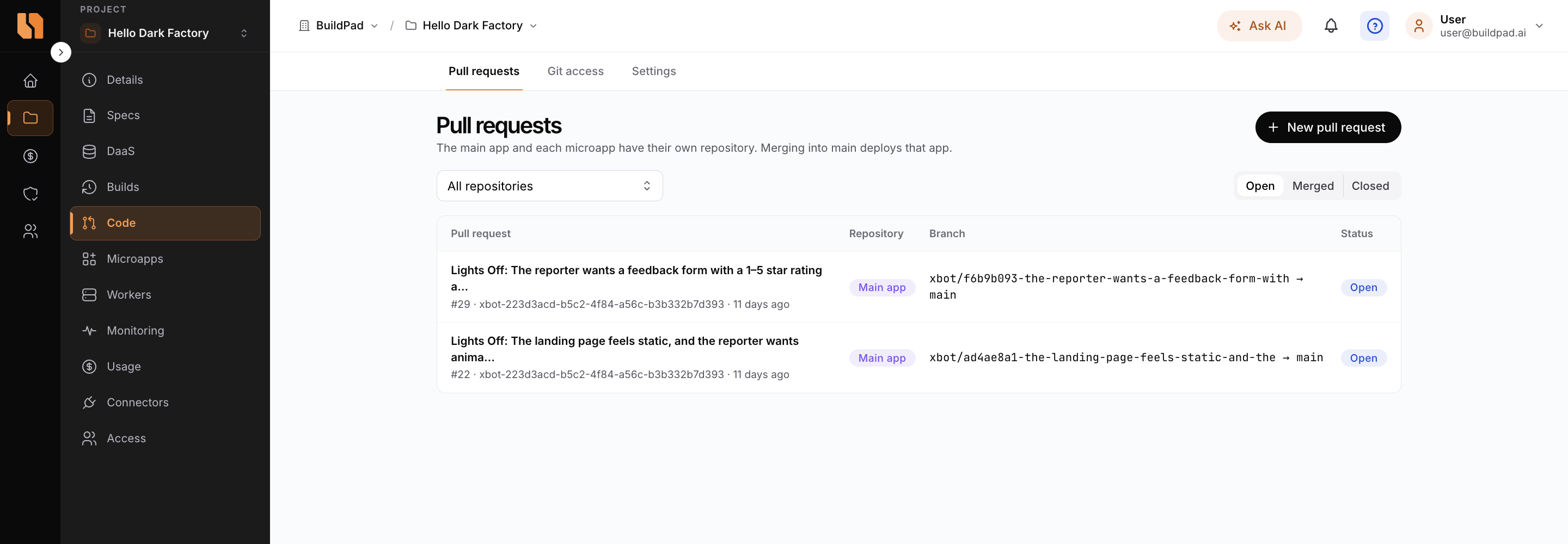
Open the project and click Code in the project’s sidebar. The page has three tabs: Pull requests, Git access and Settings.
main is the branch your apps’ Development addresses build. Merging a pull request deploys the
app in Development. On a project with Production, the change reaches your users
with the next Promotion.
Who can do what
| Action | Viewer | Developer | Admin |
|---|---|---|---|
| See the pull requests | ✓ | ✓ | |
Get git access and push a branch other than main | ✓ | ✓ | |
| Open a pull request, and close their own | ✓ | ✓ | |
| Merge (and so deploy) a pull request, and close anyone’s | ✓ | ||
Block direct pushes to main | ✓ |
A Viewer who opens the Code page sees You don’t have access.
The Pull Requests tab
The list shows the pull requests of every repository of the project, the most recently active first. Choose a repository to see only its pull requests, and Open, Merged or Closed to filter by status.
Each row shows the pull request’s title, its number, who opened it and when, the repository (the Main App, a microapp, or a mobile microapp, marked mobile), the branch it merges from and into, and its status:
| Status | Meaning |
|---|---|
| Ready to merge | Open, and merges into main without conflicts |
| Conflicts with main | Open, but main changed in the same places. Merge main into the branch, resolve the conflicts and push again |
| Open | Open, and the check for conflicts has not finished |
| Merged | Merged into main |
| Closed | Closed without merging |
A pull request that an AI agent opened through the project’s MCP connection is marked via MCP. If a repository cannot be read, the list says so above the table and shows the others.
Opening a pull request
First push your work to a branch: see Git access, or let your AI agent do it.
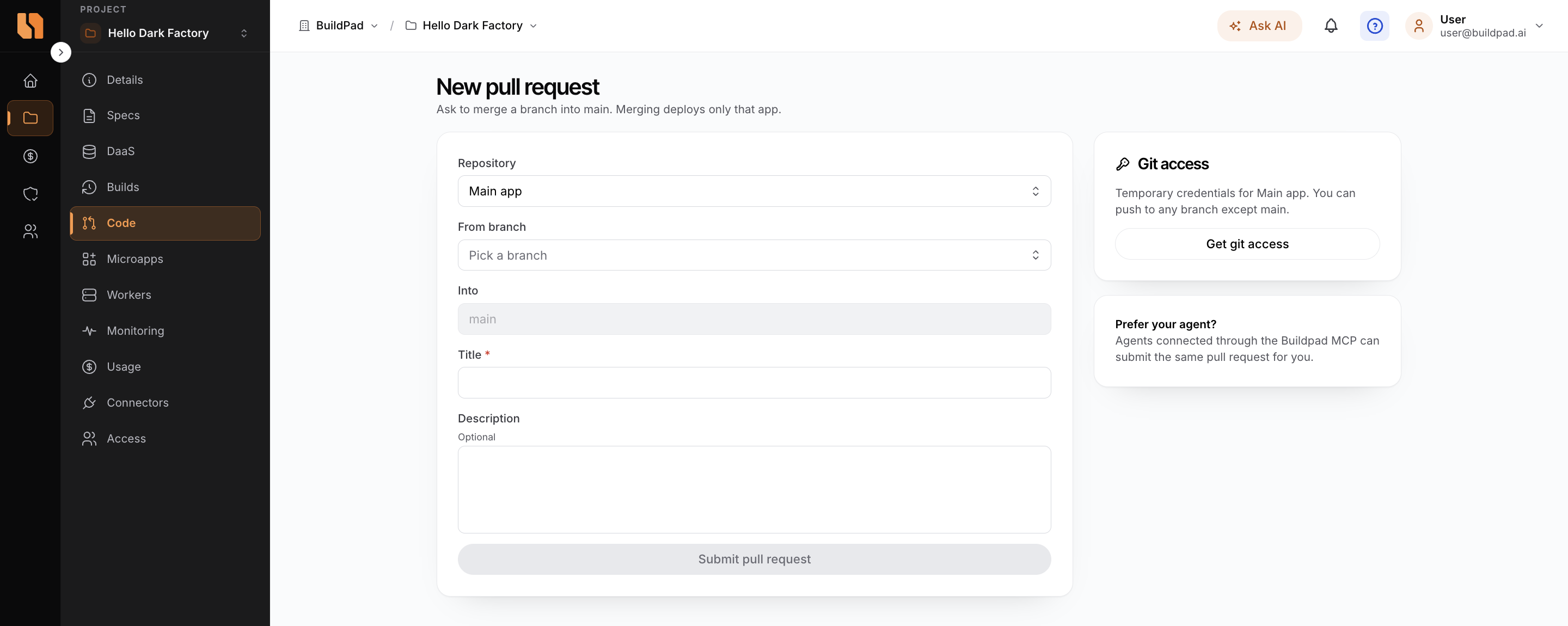
- On the Pull requests tab, click New pull request.
- Choose the Repository and the branch to merge From. The branch it goes Into is the
repository’s
main. - Write a Title and, if you like, a Description in Markdown.
- Click Submit pull request.
An AI agent connected to the project can do the same: see Pull requests from an AI agent.
Reviewing and merging
Click a pull request to open it. The page shows its description, the Files changed with the lines added and removed in each, and its Commits. Review locally gives the git commands to check the branch out on your computer.
A project Admin merges it from the card on the right:
- Check that the card says No conflicts with main.
- Choose the Merge method: Squash makes one commit of the branch’s commits; Fast-forward
keeps them as they are and needs a branch that starts from the latest
main. - Click Merge & deploy, then confirm.
Merging deploys only the app of that repository. The card then shows the app’s newest build, until it succeeds or fails, with a link to the app’s Builds page. For a mobile microapp, merging starts a mobile build: the card links to its Mobile app page.
To turn a pull request down, click Close pull request. Its branch is kept, so its author can push again and open a new one.
Git access
The Git access tab gives you short-lived credentials for one repository, to clone it and push your branch from your own computer.
- Choose the Repository.
- Click Get git access. The card shows the clone URL, when the credentials expire (at most one
hour later), and the commands that set them up for
gitthrough the AWS CLI’s credential helper. - Click Copy commands and run them in a terminal. You need the AWS CLI installed.
These credentials can push to any branch except main: a push to main is refused, so changes
reach main through a pull request. Click Get new credentials when they expire. They are shown
once and not stored: do not paste them into files you commit.
Blocking direct pushes to main
By default, the project’s own git credentials, which the starter kit
sets up, can push straight to main, and so deploy the app without a pull request. A project Admin can turn
that off:
- Open Code, then Settings.
- Turn on Block direct pushes to main, and click Block pushes to confirm.
From then on, the project’s git credentials cannot push to main in the Main App’s or any microapp’s
repository. Anyone who deployed with git push must open a pull request instead. Turn the switch
off to allow direct pushes again. Other members see whether it is on, but cannot change it.
If you add a microapp after turning it on, the page says Block is out of date: the new repository still accepts direct pushes. Click Re-apply.
Pull requests from an AI agent
The project’s MCP connection gives your AI agent the same steps, with your project role. Ask it to push its work to a branch and open a pull request. Merging is never done through MCP: the agent tells you the pull request is ready, and a project Admin merges it on the Code page.
| Tool | What it does |
|---|---|
repo_get_branch_credentials | Short-lived credentials (at most one hour) to clone one repository and push any branch except main |
pr_list | Lists a repository’s open, merged or closed pull requests |
pr_get | One pull request, with its files, commits and whether it merges without conflicts |
pr_create | Opens a pull request from a branch into main |
pr_close | Closes a pull request without merging it. Its creator or a project Admin only |
Each tool works on the Main App’s repository, or, with a microapp’s id, that microapp’s. See Platform MCP.
Lights Off works through pull requests too: you can review and merge the ones it opens on the Code page.